Customise your tour: cover, music, menu and logo

The settings of the Tour tab, from privacy to background music.
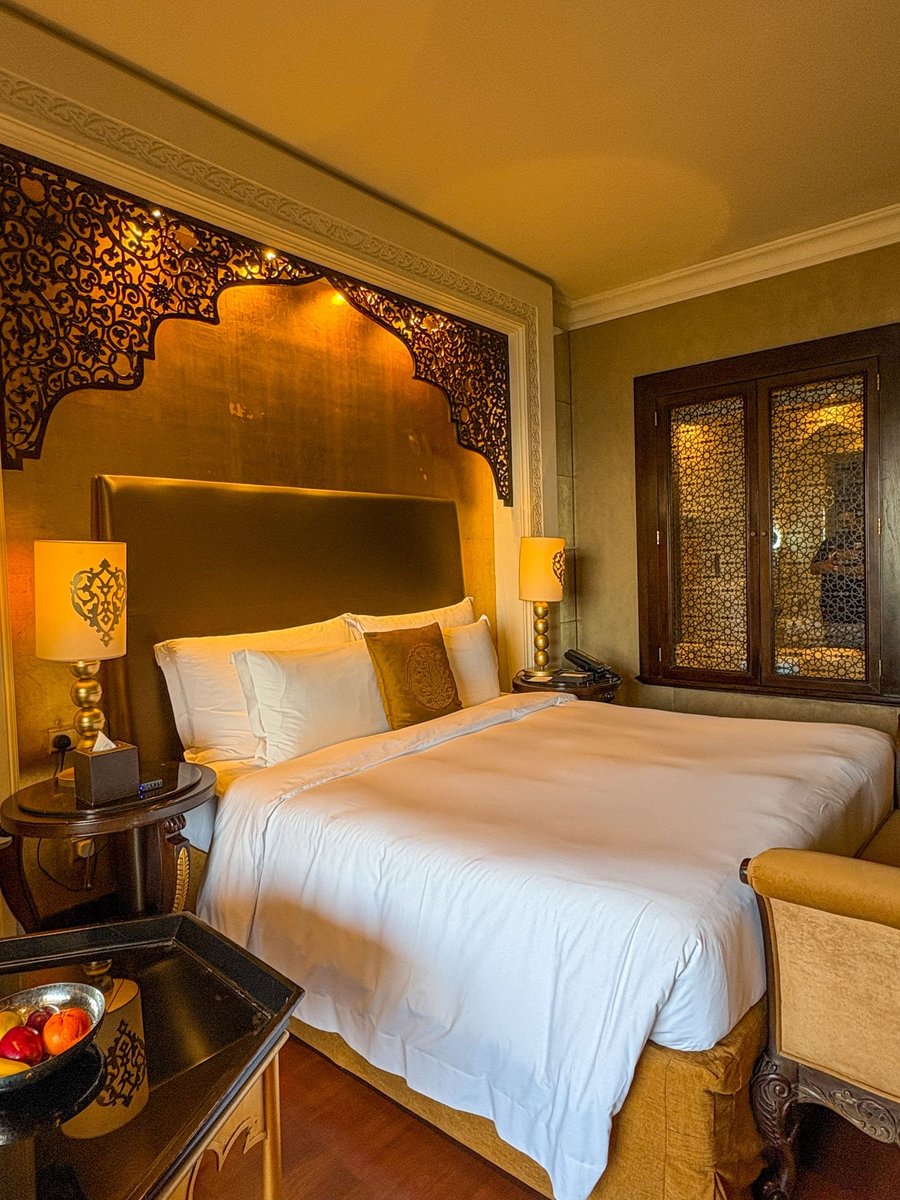
Every tour has a character: a school's, a hotel's, a company's. The editor's Tour tab holds everything you need to give it a recognisable identity and a polished experience.

General

Name, tour address and privacy: public, unlisted (reachable only with the link, kept out of search engines) or private (visible only to the members of the workspace). Here you also choose the starting scene, the cover image used in WhatsApp and Facebook previews, the logo with transparency and the language of the controls, which can follow the visitor's browser automatically.

Navigation

The transition between scenes (fade, through black, through white or none), the walk mode, which makes the move smoother, and click anywhere, which takes visitors to the nearest room in the direction they click. There is also the automatic presentation, which runs the tour by itself and stops at the first touch: ideal for screens at a reception desk or a trade-fair stand.

Audio

Background music chosen from the VIRTUS library, with CC0 tracks free of rights, or an MP3 of your own for which you declare you hold the rights. Each scene can also have its own track.

Menu, nadir and metadata

The menu gathers scenes, links, headings and separators in a list always at hand. The nadir covers the tripod with a logo at the lowest point of every photo. The metadata (address, floor area, number of rooms) become structured data that search engines understand.

Everything saves by itself: at the top you see "All changes saved", and Undo and Redo take you back up to ten actions.
More articles

All articles →

From the blog

All articles
Guide

Create your first virtual tour in five minutes

From uploading your 360° photos to sharing the link.
Guide

Link the scenes of your tour together

The arrows that let visitors walk from one room to the next.
Guide

Add information, photos, videos and sounds to your tour

Points that open a card, a web page, a sound or a questionnaire.
Guide

Customise your tour: cover, music, menu and logo

The settings of the Tour tab, from privacy to background music.
Guide

Improve your photos: filters, horizon and sun glare

The Photo tab of every scene, step by step.
Guide

Share your tour and embed it in your website

Link, code for WordPress and other sites, unbranded link for property portals.
Accessibility

VIRTUS is accessible: what it means for you and your visitors

The European rules, what VIRTUS does for you and what you can do.
Accessibility

Visiting a tour without a mouse: keyboard and screen readers

The viewer's keyboard controls and the "Points of this scene" panel.
Accessibility

Writing accessible tours: titles, descriptions and alternative text

Seven tips for a tour everyone can understand, even without seeing it.
Accessibility

Creating and moving points with the keyboard in the editor

Add at the centre of the view and position in degrees: the editor without dragging.
Guide

Virtual reality devices: what you need to view and create a 360° tour

Smartphones, headsets and 360° cameras: which devices you need to view a virtual tour and which to make one.
Guide

Latest-generation headsets: what changes and how they show 360° tours

Meta Quest 3, Apple Vision Pro, Samsung Galaxy XR, Steam Frame: what is new in recent headsets and what it means for virtual tours.
Guide

Communities and virtual tours: why people meet around virtual reality

Photographers, schools, agencies and hotels share ideas in communities: what you gain and how the VIRTUS Community works.