Visiting a tour without a mouse: keyboard and screen readers
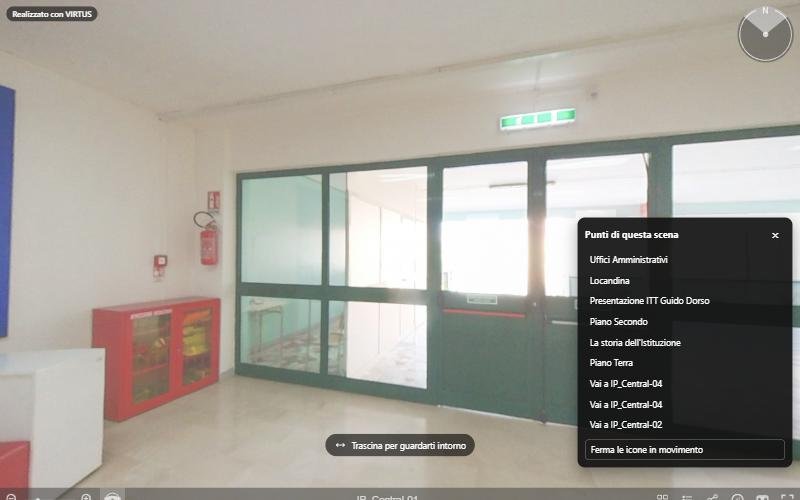
The viewer's keyboard controls and the "Points of this scene" panel.
Every tour published with VIRTUS can also be visited without a mouse or touch. It is a matter of accessibility, but also of convenience: the keyboard is quick, and a screen reader describes the visit to people who cannot see the pictures.
Keyboard controls
| Key | What it does |
|---|---|
| Tab / Shift+Tab | moves between the bar's buttons and the visible points |
| Arrow keys | turn the view right, left, up and down |
| + and − | zoom in and out |
| Enter or Space | open the selected point or button |
| Esc | closes the open card or panel |
The controls also work when the tour is embedded in a client's website, with no need for fullscreen.
The "Points of this scene" panel
In the bottom bar, the list icon opens Points of this scene: every point of the room, even those out of view, shown as a list of buttons. Links appear as "Go to…" followed by the name of the destination scene, information points with their title.
Choosing an item turns the view towards the point and opens it: a card, a web page, a video, a questionnaire or the move to another room. When it closes, the focus goes back to where you were.
Stopping the animations
In the same panel, Stop the moving icons halts the bouncing and pulsing of the icons: useful for people who are easily distracted or affected by motion. The automatic rotation stops with its own button in the bar.
With a screen reader
NVDA, JAWS, VoiceOver and TalkBack read the names of the bar's buttons, the list of points and the content of the cards. That is why every point needs a clear title: it is exactly what the screen reader announces.