VIRTUS is accessible: what it means for you and your visitors

The European rules, what VIRTUS does for you and what you can do.
Since 28 June 2025 the European Accessibility Act asks many digital services to be usable by everyone: by people who cannot see, who do not use a mouse, who have difficulties with movement or attention. Public bodies and schools already had similar duties under national laws. The technical reference is the European standard EN 301 549, which refers to the WCAG 2.1 level AA.

What VIRTUS does for you

  • Tours can be visited with the keyboard: the arrow keys turn the view, Enter or Space open the points, Esc closes the cards.
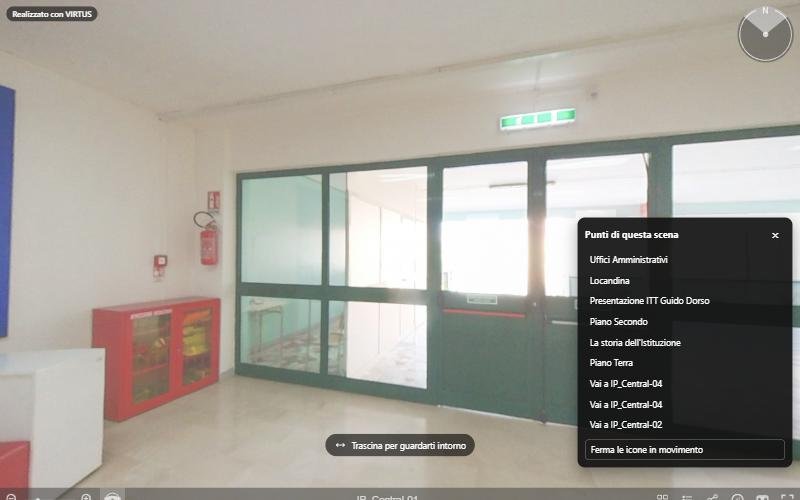
  • The Points of this scene button lists every point of the room, even those out of view: people using a screen reader know what is there and reach it with one key.
  • The automatic rotation and the moving icons stop with a button and follow the device's "reduce motion" setting.
  • Colours and contrast of the panel and the viewer meet the minimum values, in the light and the dark theme.
  • In the editor, people who do not use a mouse can create and move points with Add at the centre of the view and the position in degrees.

What you can do

A tour's accessibility also depends on how you write it: understandable scene names, clear point titles, descriptions of posters, important information written in the text and not only shown in pictures. You will find the tips in the guide on writing accessible tours.

The accessibility statement

The VIRTUS statement is public on the Accessibility page of tour.vr-creators.it. It explains what we have done, what is still to improve and how to report a barrier: we answer within 30 days.

If your tour is on the website of a school or a public body, remember that the body must also publish its own accessibility statement.
More articles

All articles →

From the blog

All articles
Guide

Create your first virtual tour in five minutes

From uploading your 360° photos to sharing the link.
Guide

Link the scenes of your tour together

The arrows that let visitors walk from one room to the next.
Guide

Add information, photos, videos and sounds to your tour

Points that open a card, a web page, a sound or a questionnaire.
Guide

Customise your tour: cover, music, menu and logo

The settings of the Tour tab, from privacy to background music.
Guide

Improve your photos: filters, horizon and sun glare

The Photo tab of every scene, step by step.
Guide

Share your tour and embed it in your website

Link, code for WordPress and other sites, unbranded link for property portals.
Accessibility

VIRTUS is accessible: what it means for you and your visitors

The European rules, what VIRTUS does for you and what you can do.
Accessibility

Visiting a tour without a mouse: keyboard and screen readers

The viewer's keyboard controls and the "Points of this scene" panel.
Accessibility

Writing accessible tours: titles, descriptions and alternative text

Seven tips for a tour everyone can understand, even without seeing it.
Accessibility

Creating and moving points with the keyboard in the editor

Add at the centre of the view and position in degrees: the editor without dragging.
Guide

Virtual reality devices: what you need to view and create a 360° tour

Smartphones, headsets and 360° cameras: which devices you need to view a virtual tour and which to make one.
Guide

Latest-generation headsets: what changes and how they show 360° tours

Meta Quest 3, Apple Vision Pro, Samsung Galaxy XR, Steam Frame: what is new in recent headsets and what it means for virtual tours.
Guide

Communities and virtual tours: why people meet around virtual reality

Photographers, schools, agencies and hotels share ideas in communities: what you gain and how the VIRTUS Community works.