Writing accessible tours: titles, descriptions and alternative text

Seven tips for a tour everyone can understand, even without seeing it.
VIRTUS makes the viewer accessible, but you write the content. With a few precautions your tour becomes understandable even for people who cannot see the photos, and on top of that it reads better for everyone and is better understood by search engines.
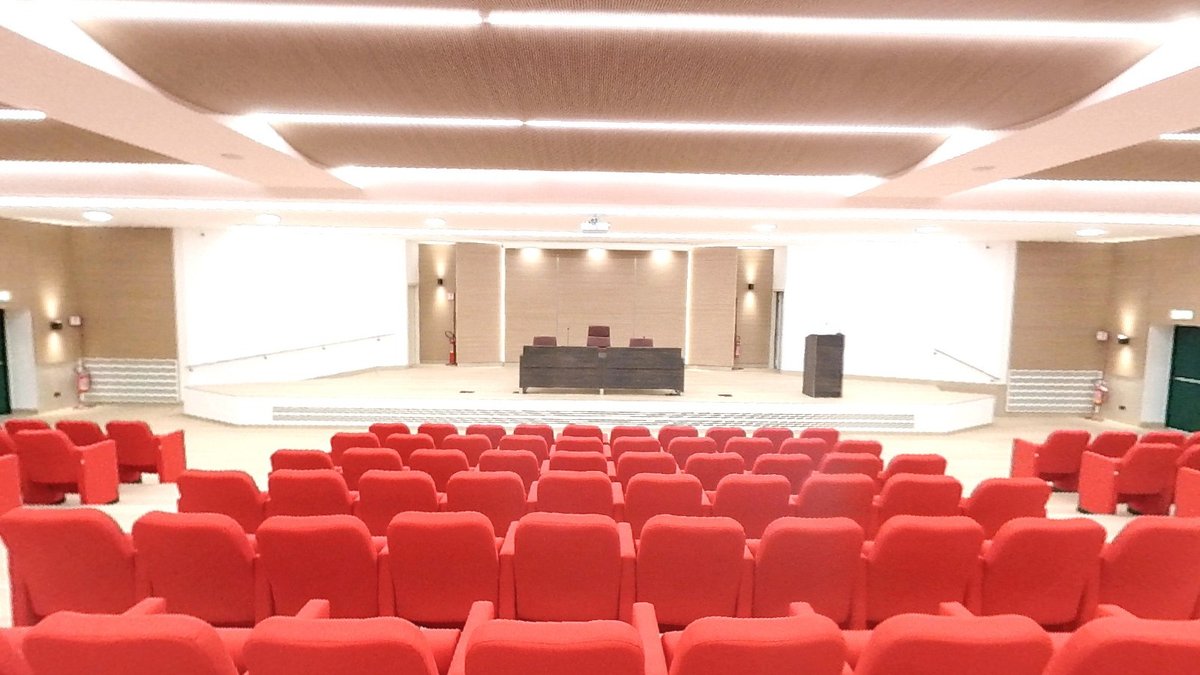
The auditorium of ITT Guido Dorso in Avellino: rows of red seats on light wooden tiers, ceiling lights and the stage at the back

Seven practical tips

  1. Give every scene a clear name: "Entrance hall", "Chemistry laboratory", "Double room with sea view", not "IMG_0042". The name appears in the bar, in the list of scenes and in the "Go to…" links.

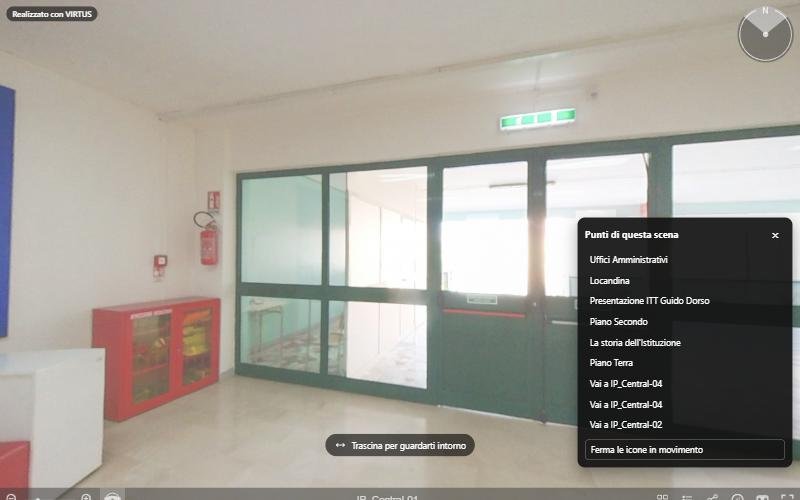
  2. Give every point a title: it is what screen readers announce and what appears in Points of this scene. "Administration offices" is better than "Click here" or an empty title.

  3. Describe the pictures: in a Picture point the Description field is the alternative text. Write what the picture shows and why it matters ("Poster of the open day on 14 December"), not just "Poster".
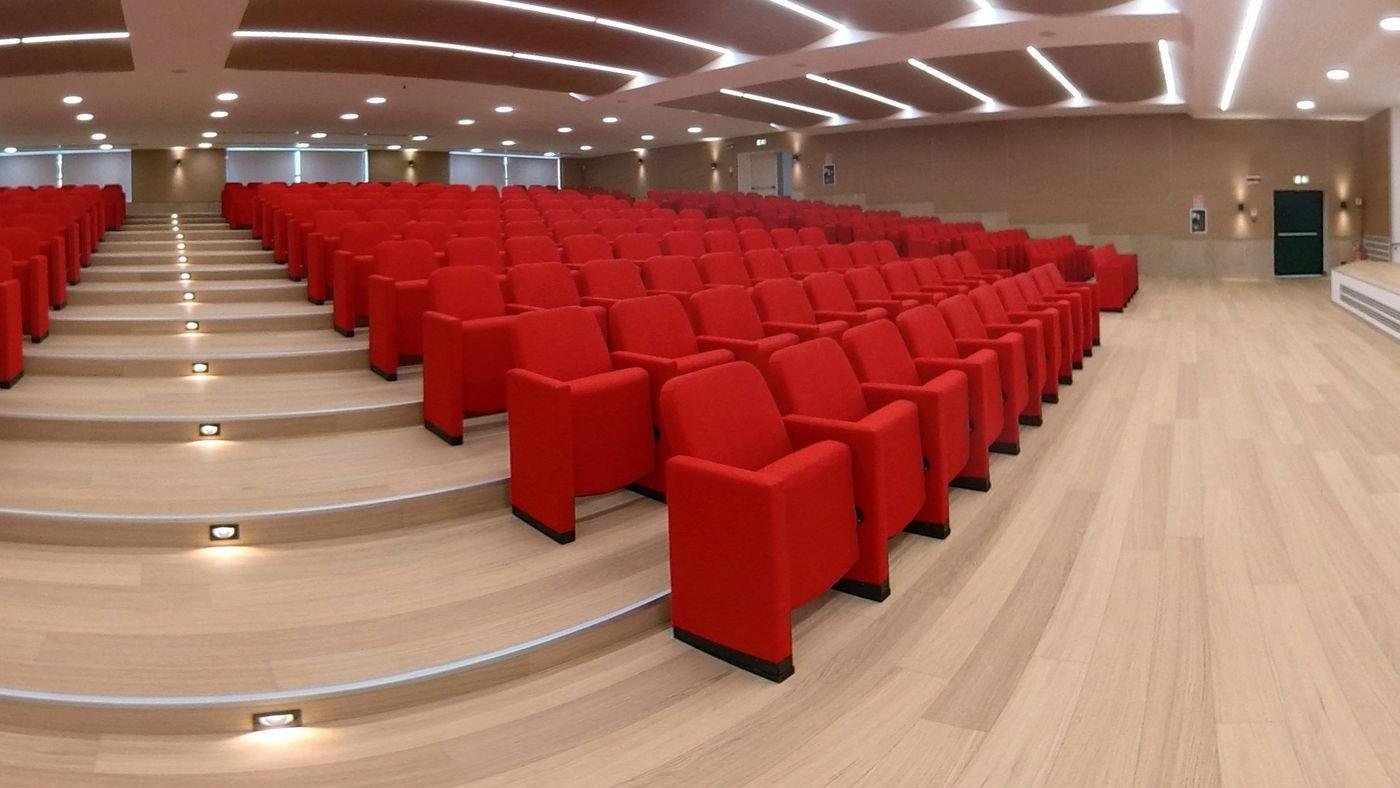
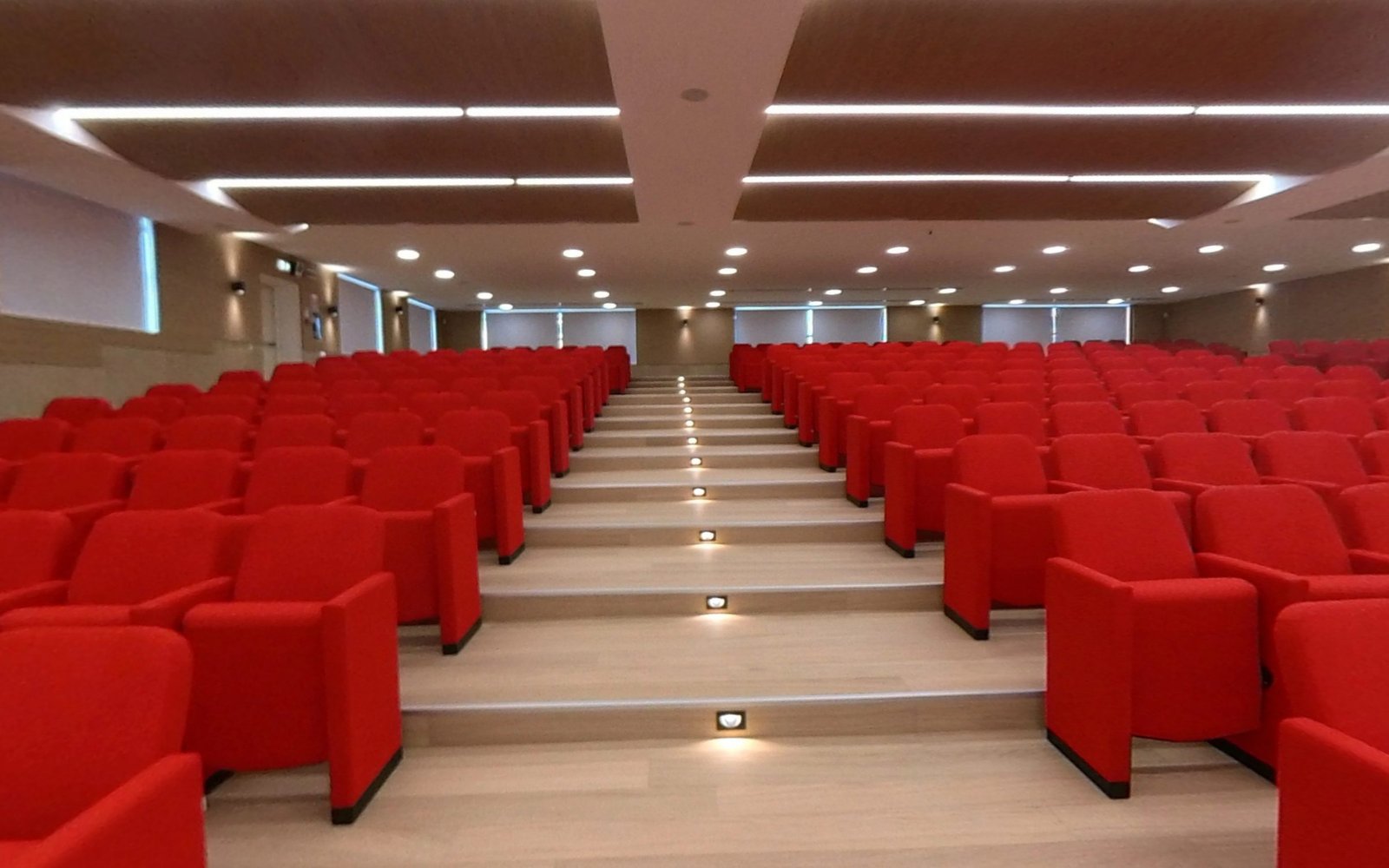
    The red seats of the auditorium seen from the side aisle, with the steps lit by small floor lights

    The two pictures on this page are an example: the description says what can be seen and what matters, that is the red seats, the tiers and the lights, so that people who cannot see the photo can picture the auditorium.

  4. Put the information in the text, not only in pictures: if a poster contains times, dates or contacts, write them in the card's text too. A screen reader cannot read the words inside a photo.

  5. Use formatting with care: bold and italics help people find their way, but the meaning must not depend on colour or position alone.

  6. Videos with subtitles: if you link a YouTube or Vimeo video, turn on subtitles on the platform and, if you can, write a short description in the card.

  7. Accessible documents: linked PDFs should contain selectable text, not scans of printed pages.

A final check

Open the tour, press the Points of this scene button and read the list aloud. If you understand what is in the room without looking at the photo, you are on the right track. Then try visiting a scene with the keyboard only: Tab, arrow keys, Enter and Esc.

An accessible tour is not a poorer tour: it is a better written one.
More articles

All articles →

From the blog

All articles
Guide

Create your first virtual tour in five minutes

From uploading your 360° photos to sharing the link.
Guide

Link the scenes of your tour together

The arrows that let visitors walk from one room to the next.
Guide

Add information, photos, videos and sounds to your tour

Points that open a card, a web page, a sound or a questionnaire.
Guide

Customise your tour: cover, music, menu and logo

The settings of the Tour tab, from privacy to background music.
Guide

Improve your photos: filters, horizon and sun glare

The Photo tab of every scene, step by step.
Guide

Share your tour and embed it in your website

Link, code for WordPress and other sites, unbranded link for property portals.
Accessibility

VIRTUS is accessible: what it means for you and your visitors

The European rules, what VIRTUS does for you and what you can do.
Accessibility

Visiting a tour without a mouse: keyboard and screen readers

The viewer's keyboard controls and the "Points of this scene" panel.
Accessibility

Writing accessible tours: titles, descriptions and alternative text

Seven tips for a tour everyone can understand, even without seeing it.
Accessibility

Creating and moving points with the keyboard in the editor

Add at the centre of the view and position in degrees: the editor without dragging.
Guide

Virtual reality devices: what you need to view and create a 360° tour

Smartphones, headsets and 360° cameras: which devices you need to view a virtual tour and which to make one.
Guide

Latest-generation headsets: what changes and how they show 360° tours

Meta Quest 3, Apple Vision Pro, Samsung Galaxy XR, Steam Frame: what is new in recent headsets and what it means for virtual tours.
Guide

Communities and virtual tours: why people meet around virtual reality

Photographers, schools, agencies and hotels share ideas in communities: what you gain and how the VIRTUS Community works.